
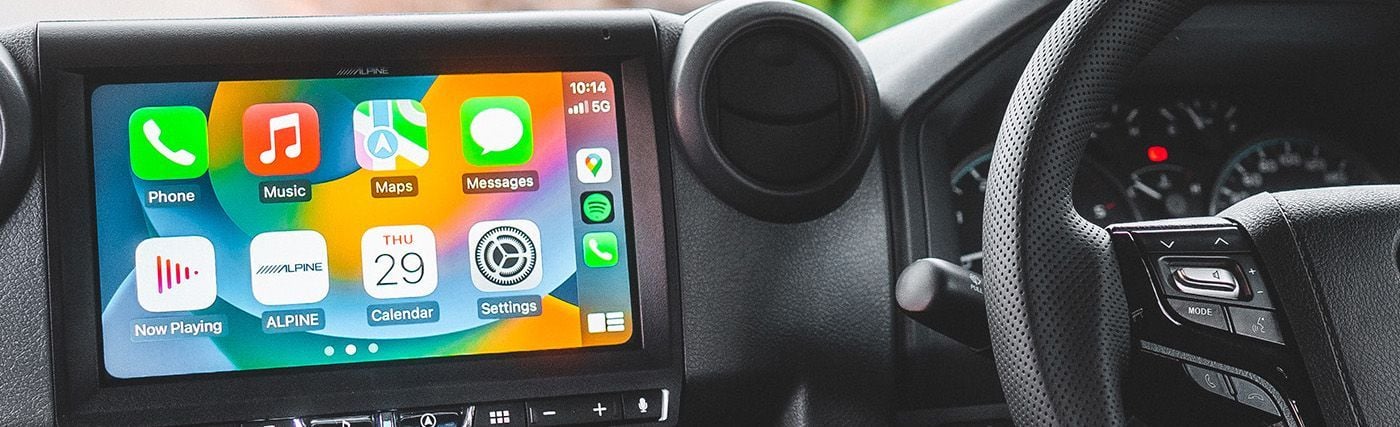
Apple CarPlay and Android Auto have done much to address many of the challenges associated with integrating and utilising your personal digital device in your vehicle, with Apple CarPlay and Android Auto revolutionising the way we interact with our technology, features and applications when driving. However, something things can go wrong and fail to behave as expected. Below we outline the suggested steps you can take in order to address these connectivity issues.
The overwhelming majority of issues experienced relating to phone connections with car headunits relate to Android Auto, due to the wide variation in manufacturers, models and operating systems. Issues can happen with Apple Carplay, however are far rarer due to Apple’s tight control of its ecosystem and the comparatively smaller variation in hardware and software.
USB leads, USB extensions, USB passthrough devices and individual handsets are generally the culprit, however the software loaded on handsets purchased from telecommunications providers like Telstra and Optus can also be a factor, with a handset purchased from a telco in some instances failing to work, while the same make and model handset purchased from the OEM via a reseller works without issue using the same cable and in the same vehicle. Accordingly, fault finding the problem can be a bit of a challenge.
Apple CarPlay Connectivity
Your iPhone can sometimes require confirmation of authorisation to connect with your headunit via Carplay. This can require you to unlock your iPhone handset using your usual method, whether it be a password, faceid or biometrics.
You will need an Iphone 5 with iOS version 7.1 or newer at a minimum to use wired Apple CarPlay, or an iPhone 5s or newer handset running iOS version 12 or newer in order to use wireless Apple CarPlay. You can confirm this by navigating to 'Settings/General/About' and checking the 'iOS Version' and 'Model Name' of your handset.
You can check whether your particular vehicle supports Apple CarPlay from the factory by visiting this page, and checking your vehicle is on the list of supported vehicles. Click here to see a full list of compatible headunits we offer here at Automotive Superstore.
Reset your handset after every software update, and weekly as a manner of consistent habit if experiencing a re-occurring issue. This process can generally be initiated by holding down the power and at least one other button on your iPhone handset until the screen goes blank and you see the apple logo.
Replace your USB cable with an OEM standard or suitably premium aftermarket cable. This is important, as many cheaper and lesser quality and counterfeit cables can fail to provide the high bandwidth and reliable data connection required, and Apple actively blocks uncertified cables. It is critical to get this part right, especially if you are experiencing connectivity issues.
This can be done by navigating to 'Settings/General/Software update' and initiating any software updates that might be pending.
It may be necessary to update any apps necessary for your iPhone. Navigate to the 'AppStore' app, touch the symbol in the top righthand corner of the screen and scroll down to the list of apps. One option is to navigate through the list of apps to find any relevant apps and manual update them, or alternatively click the ‘Update All’ option at the top of the list to ensure all apps are updated in one fell swoop.
It can be helpful to remove and re-pair your iPhone from your vehicle(s) following every major software update of the handset. You can do this by deleting the paired device at both ends and re-completing pairing process. Start by navigating to 'Settings/General/CarPlay' on your iPhone, click on your vehicle(s) and select 'Forget this car'. After completing the above step on your iPhone, delete the handset pairing via your vehicle(s) headunit. This can usually be achieved by navigating to the ‘Bluetooth’ or ‘Connections’ menu. Consult the user manual of your headunit if you need assistance finding the device pairing settings within the menu of your particular headunit. Then re-pair the iPhone handset to the vehicle headunit.
If you have content and privacy restrictions on, then it is important to ensure that CarPlay is specifically enabled. You can confirm this by navigating to 'Settings/Screen Time/Content & Privacy Restrictions' and checking the status of 'CarPlay' is enabled within this submenu.
If you wish to conveniently use Siri on your Apple Carplay enabled headunit, then confirm that you have Hey Siri and Press Side Button for Siri enabled. You can achieve this by navigating to 'Settings/Siri & Search' and make sure 'Hey Siri' is enabled as well as 'Press Side Button for Siri.'
If you intend on using wireless CarPlay then ensure you have Bluetooth and Wifi both turned on, as both are necessary for Apple Carplay to work. It may also be necessary to enable Auto Join for CarPlay networks. Navigate to 'Settings/General/CarPlay' on your iPhone, then select your vehicle, and ensure 'Auto Join' is turned on.
Android Auto Connectivity
You will need a handset running Android 6 or newer in order to use wired Android Auto, or version 11 or newer and wifi support wireless Android Auto in your vehicle.
You can check whether your particular vehicle or aftermarket headunit supports Android Auto from the factory by visiting this page, and checking your vehicle is on the list of supported vehicles and stereos.
Reset your handset after every software update, and weekly as a manner of consistent habit if experiencing a re-occurring issue.
Replace your USB cable with an OEM standard or suitably premium aftermarket cable. This is important, as many cheaper and lesser quality and counterfeit cables fail to provide the high bandwidth and reliably stable data connection required for Android Auto to function as intended. If you are looking for guidance, we recommend Belkin’s BoostCharge Pro Flex as it provides quality, consistent performance and is reasonably priced. NOTE – The above advice assumes you are plugging your phone into a single cable, and that cable is plugged directly into your headunit. If you have a USB extension, USB passthrough device, remote panel-mounted USB socket or other cable or device between your Android handset and the headunit, please remove it to eliminate it as a factor preventing a strong, stable connection between your phone and your headunit.
Check to ensure all relevant apps are up to date. You can do this by opening the Google Play App on your Android handset, selecting the user profile symbol located in the top righthand corner of the screen, selecting 'Manage Apps and Games/Updates', then checking to ensure all apps are up to date. Reset the handset after completing this process.
It can be helpful to remove and re-pair your phone from your vehicle(s) following every major software update of the handset. You can do this by deleting the paired device at both ends and re-completing the pairing process. Start by navigating to 'Settings/Android Auto/Previously Connected Cars' on your handset, clicking the 3 dots located in the top righthand corner of the screen, then selecting ‘forget all cars’. After completing the above step on your handset, delete the handset pairing via your vehicle(s) headunit. This can usually be achieved by navigating to the ‘Bluetooth’ or ‘Connections’ menu. Consult the user manual of your headunit if you need assistance finding the device pairing settings within the menu of your particular headunit.
In some cases it may also be beneficial to initiate a headunit reset. This can sometimes be done via the headunit manual using a ‘reset to factory’ or ‘clear all settings’ option within the headunit menu. Again, consult the manufacturers user manual for guidance on how to do this. CAUTION – Initiating a reset on your headunit will likely wipe other settings, such as your DSP, speaker and reversing camera configuration, so be sure to record any critical settings you would like to keep, so you can re-input them following the reset.
As we carry our phones around in our pockets, purses and bags, they are exposed to lint, dust and other debris that can prevent the prevent a proper connection between the handset and USB cable, preventing stable data transfer. If your USB socket shows signs of being fouled by some form of detritus, you can attempt to clear the obstruction by blowing it out or, if absolutely necessary, gently and carefully clearing with the help of a toothpick or other small, soft, non-metallic (non-conductive) object. CAUTION – Poking things into the USB port can create it’s own problems by fouling, damaging or misaligning the sensitive electrical contacts in the USB port. Special care should be taken to avoid making the issue worse. If you have any doubts about performing this step yourself then it may be better to seek the assistance of a suitable electronics repairer or sending it back to the manufacturer or telecommunications provider to have it tended to by a professional.
It is possible for some handsets to not recognise when it is connected to an Android Auto capable headunit, instead mistaking it for a charger, which will prevent it from establishing a data connection. This can often be addressed by activating a feature in the settings menu. Navigate to 'Settings/System/Advanced/Developer Options/App Compatibility Changes' or 'Settings/Google Developer Options', then activate 'USB Debugging'. If the above instructions don’t help you find the options, you can try searching in settings for developer options, google ‘how to find developer option on *your handset*, or consult the user manual.
Google, the developer of Android Auto, maintain a list of known issues effecting the functionality of Android handsets and Android Auto equipped vehicles. You can review this list of known issues and the status of any associated fixes here. Peruse the list to see if there is a known issue that might be effecting your handset and/or vehicle.
Dropouts and Interruptions
While in most circumstances the wireless connectivity of Apple CarPlay and Android Auto operates without complication, it is subject to interruptions. Drop-outs and disruptions may be experienced on occasion due to several factors including but not limited to mobile phone firmware updates, user settings such as low power mode or battery optimisation modes as well as external factors such as radio frequency overcrowding in dense urban areas, tag reading toll points or deliberate signal denial systems deployed near security sensitive sites. Many of the causes these interruptions in normal operation can be addressed by the procedures outlined above.
NOTE: This troubleshooting guide was compiled with the kind assistance of Alpine Electronics of Australia Pty Ltd’s technical personnel.


